Getting Started
A quick tour of LEADNAV Command — what everything does and how to start building your first trip.
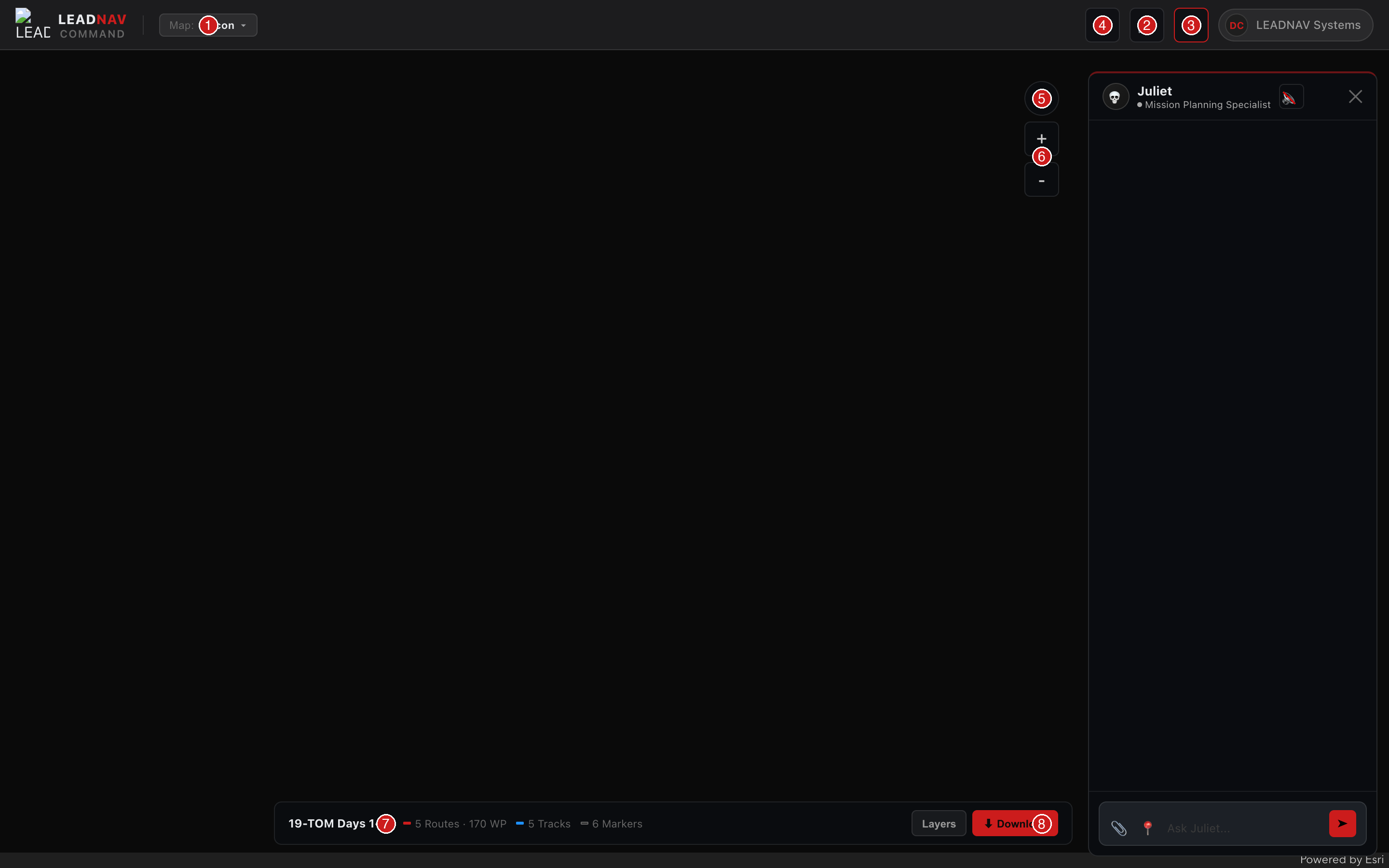
LEADNAV Command main interface — numbered callouts explained below
Interface Callouts
1
Map Type Selector
Switch between Satellite, Topo, Recon, Ocean Contours, and 3D views. Your current map type is shown in the topbar.
2
Collections Panel
Open your GPS file library. Create a new collection, upload files, and tap any collection to load it on the map.
3
Juliet — AI Mission Planner
Your AI GPS specialist. Ask Juliet to clean files, add markers, analyze routes, or plan waypoints. She reads your active file automatically.
4
Help & Reference
Access guides and reference docs — marker symbols, tutorials, and more. You're reading one now.
5
Compass
Always-on compass showing your current map heading. Tap it to instantly snap back to North Up.
6
Zoom Controls
+ and − to zoom in and out. You can also pinch on touch screens or use the scroll wheel on desktop.
7
Active Collection Bar
Shows the currently loaded file — route count, track count, and waypoints at a glance. Download button exports your file.
8
Layer Toggles
Show or hide Routes, Tracks, Waypoints, and Markers independently. Toggle individual routes and tracks on/off.
Building Your First Trip
1
Create a Collection
Tap 📁 to open the Collections panel, then hit + New. Give it a name — something like "Baja 500 2026" or "Weekend Recon." This is your container for everything related to one trip or event.
2
Upload Your GPS Files
Drag and drop a .GPX file onto the upload zone at the bottom of the Collections panel, or tap Browse to select one. You can also upload a Course Notes PDF — Juliet will read it and extract waypoints automatically.
3
Load It on the Map
Tap your collection name — the file loads and the map zooms to fit your route. Routes appear in red, tracks in blue, waypoints as pins with labels, and markers as their assigned icons.
4
Build a Route with Trip Planner 
Open the Trip Planner panel and use Route Builder to build a road route from any origin to any destination — no GPS file needed. Tap 📍 to use your current location as origin. Switch to Find Along Route to automatically mark gas stations, restaurants, hotels, or other stops along your route.
5
Work with Juliet 
Open the Juliet panel (💀) and ask her anything about your file. She already sees what's loaded. Try:
"Convert all tracks to routes", "Add a caution marker at mile 47", or "What waypoints are in this file?"6
Export for LEADNAV GPS
When your file is ready, tap the Download button in the bottom bar to get your .GPX file. Import it into LEADNAV GPS on your iPad and you're ready to navigate.
Tip: Juliet remembers everything within a session — you can have a back-and-forth conversation to refine your file. Ask her to show you what's in the file, then ask her to make changes, then review again.
3D Map Controls
🔍
Zoom
Two-finger scroll on trackpad, or scroll wheel on mouse. Works in both 2D and 3D.
↑
Reset North — Tap the Compass
The compass button (above the zoom controls) always points to true north. Tap it to instantly snap back to north-up. Works in both 2D and 3D.
🗺
Switch to 3D
Open the Map dropdown in the topbar and select 3D Satellite or 3D Topo. Select any 2D map type to return to flat view. Your routes and waypoints drape over the 3D terrain automatically.
More Reference
→
All 85 available map markers with icons and exact Juliet codes. Click any marker to copy its name.